Tutorial · Live video from an Epiphan Pearl
Epiphan Pearl tutorial: your show on air in four fields
This Epiphan Pearl tutorial takes your Pearl from the box to a live Primcast channel: you add one RTMP push stream, fill in four fields from your panel, set a 2-second keyframe and press Start.
It works the same on the Pearl-2, Pearl Mini, Pearl Nano and Pearl Nexus. There is an SRT version for venues with a weak connection, and a short section for older Epiphan encoders.
- URL
rtmp://HOST:1935/APPServer, in your panel - Stream name
livestreamStream name, in your panel - Username
your-usernameUsername, in your panel - Password
••••••••••Password, in your panel
Before you start: your Pearl and four values from your panel
You set everything up from a browser on the same network as the Pearl. Keep a second tab open on your Primcast panel, because you will copy from one into the other.
Open the Pearl Admin panel
Type the Pearl's IP address into your browser and sign in as admin. On models with a front screen the address is shown there. Otherwise, look for the Pearl in your router's list of connected devices.
Update the firmware first if the Admin panel offers it. Epiphan keeps adding stream options, SRT among them, and a current version saves you hunting for a menu that is not there.
Copy your encoder settings
Sign in to Primcast, open your video account and find the Live streaming card. Under Encoder settings you will see:
- Server
- An address like
rtmp://HOST:1935/APP. - Stream name
- Usually
livestream. - Username
- The login your Pearl publishes with.
- Password
- Hidden until you click Show. New password makes a fresh one.
Does your card also list a Nearest server? Put that address in the Pearl's URL field instead. Your Pearl then connects to whichever of our locations is closest to you (New York, Miami, San Francisco, Amsterdam or Bucharest), and our network carries the stream the rest of the way. Stream name, username and password do not change.
Epiphan Pearl RTMP push, step by step
Each Pearl channel can carry its own streams. Add the Primcast stream to the channel that holds the layout you want your viewers to see.
- In the Admin panel, pick your channel under Channels and open Streaming.
- Click New stream and choose RTMP push.
- Paste the Server address from your panel into URL. Leave out any stream name at the end: it has its own field.
- Type the stream name, normally
livestream, into Stream name. - Fill in Username and Password. Many guides for other platforms tell you to leave these empty. On Primcast they are required, and a stream without them is turned away.
- Click Apply, then Start. The stream status changes once the Pearl is connected.
Most streaming platforms hand you a single stream key, which goes into the Stream name field. Primcast gives you a stream name plus a publishing login instead, so all four fields are filled in.
Encoding settings for smooth Epiphan Pearl streaming
Open the channel's Encoding page. Choose H.264 video and AAC audio, then pick the row below that fits your upload speed. Keep a third of your upload spare: a speed test that shows 6 Mbps means sending about 4 at most.
| Frame size | Frame rate | Video bitrate | Audio | Upload you need |
|---|---|---|---|---|
| 1920×1080 | 30 | 4,500 kbps | AAC 128 kbps | 7 Mbps |
| 1280×720 | 30 | 2,500 kbps | AAC 128 kbps | 4 Mbps |
| 854×480 | 30 | 1,200 kbps | AAC 96 kbps | 2 Mbps |
Set the keyframe interval to 2 seconds
This is the one setting that decides whether playback holds together. We cut your stream into playback segments on keyframes, so a long or uneven interval shows up as buffering for your viewers, even when nothing is wrong on either end.
Stay within your plan
The paid live video plans accept up to 5 Mbps from your encoder, which covers the 1080p row. If you are unsure of your venue's connection, start with 720p and move up after a test.
Epiphan Pearl SRT, for venues with a weak connection
SRT resends lost packets, so a stream from venue Wi-Fi, a mobile uplink or another continent keeps going where RTMP would stall. It comes with the Pro and Platinum plans of our video CDN, and your Live streaming card then has an SRT ingest section with your own port and passphrase.
Add an SRT stream on the Pearl
- Under your channel, open Streaming, click New stream and choose SRT.
- Set the mode to Caller. Your Pearl dials out, and our server listens on your port.
- Enter the host and the port from the Address line of your SRT ingest section.
- Turn on encryption with a 128-bit key (AES-128) and paste your Passphrase. Leave the stream ID empty.
- Click Apply, then Start.
What changes for your viewers
A stream that arrives over SRT plays under its own name. Use the link your panel shows under Plays at for as long as you send over SRT.
- Address
srt://HOST:PORT- Passphrase
- Hidden until you click Show.
- Key length
- 128-bit (AES-128)
- Latency
- Our side waits 1000 ms for late packets. A higher value on the Pearl gives a bad link more room.
If your card shows a Nearest server line under SRT ingest, use that host and port with the same passphrase. It connects your Pearl to our closest location first.
Check that you are live, and fix what is not
- On the Pearl, the stream you started should report that it is connected and sending.
- On your Primcast panel, the Live streaming card refreshes every 15 seconds. It should show you as live, with the bitrate your Pearl is sending.
- Copy the playback link from the same card and open it in VLC (Media, then Open Network Stream) to watch what your viewers will see.
| What you see | What to do |
|---|---|
| The Pearl cannot connect at all | Check the URL letter by letter, including :1935 and the application name. Some hotel and office networks block port 1935, so try another connection or switch to SRT. |
| It connects, then the stream is refused | The username or password is wrong. Click New password in your panel, paste it into the Pearl, click Apply and start again. |
| Your panel shows nothing after a password change | A new password applies the next time the Pearl connects. Stop the stream on the Pearl and start it again. |
| The stream runs, but viewers buffer | Set the keyframe interval to 2 seconds, then drop to a lower row in step 03. Your venue's upload may be slower than it looked. |
| The picture is black or the sound is missing | The channel's layout has no live source in it. Check the inputs and the layout of the channel that carries the stream. |
Older Epiphan encoders with a Publish Stream page
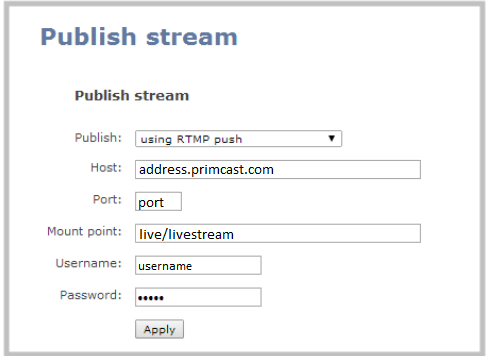
Earlier Epiphan encoders use a different web interface. If yours has a Publish Stream section instead of Channels and Streaming, follow these two steps.
- Sign in as admin, open Publish Stream, click Publish and select RTMP push. Enter the stream address, the port and the mountpoint, written as
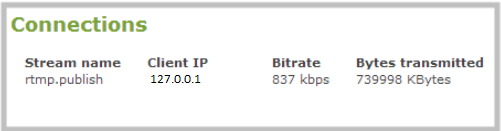
application/streamname(for examplelive/livestream), then your username and password. - Save, then open the Connections tab. A line called
rtmp.publishmeans the encoder is sending to your Primcast channel.
Epiphan Pearl streaming questions
What do I put in the Epiphan Pearl URL and Stream name fields?
The URL is the Server address from the Live streaming card in your Primcast panel, which looks like rtmp://HOST:1935/APP. The Stream name is usually livestream. Add your publishing username and password in the two fields below them, then click Apply.
Do I need the username and password fields on the Pearl?
Yes. Your Primcast channel only accepts a stream that signs in with your publishing login, so fill in both. Guides for platforms that work with a single stream key tell you to leave them empty, which is why streams copied from those guides get refused.
What keyframe interval should an Epiphan Pearl use?
Two seconds, kept fixed, set on the channel's Encoding page. Playback is cut into segments on keyframes, so a longer or uneven interval makes your viewers buffer.
Does the Epiphan Pearl support SRT streaming?
Yes, current Pearl firmware can send SRT in caller mode with an encryption passphrase. On Primcast, SRT ingest comes with the Pro and Platinum plans of the video CDN. Your panel then shows the address and passphrase to use.
Can I stream to YouTube and Primcast at the same time?
You can, in two ways. Add a second stream on the same Pearl channel, which costs you a second share of your upload. Or send one stream to Primcast and switch on Restream in your panel: it forwards your channel to up to five destinations such as YouTube, Facebook, Twitch or any other RTMP server, and your upload carries only one copy.
Can the Pearl record while it streams to Primcast?
Yes. Recording is set up per channel on the Pearl and runs alongside the stream, so you keep a local copy of the show even if the venue connection drops for a moment.
Who can help if my Pearl still will not connect?
Open the chat on this page. Our AI support answers in seconds, can look at your account and your channel to see whether anything is arriving, and brings in a person whenever you ask.
Give your Pearl a channel to stream to
A Primcast live video channel gives you the four values this tutorial asks for, a playback link and an embed code for your website. Pick a plan and your encoder settings are waiting in your panel.